Let's Get Ready to Roll!
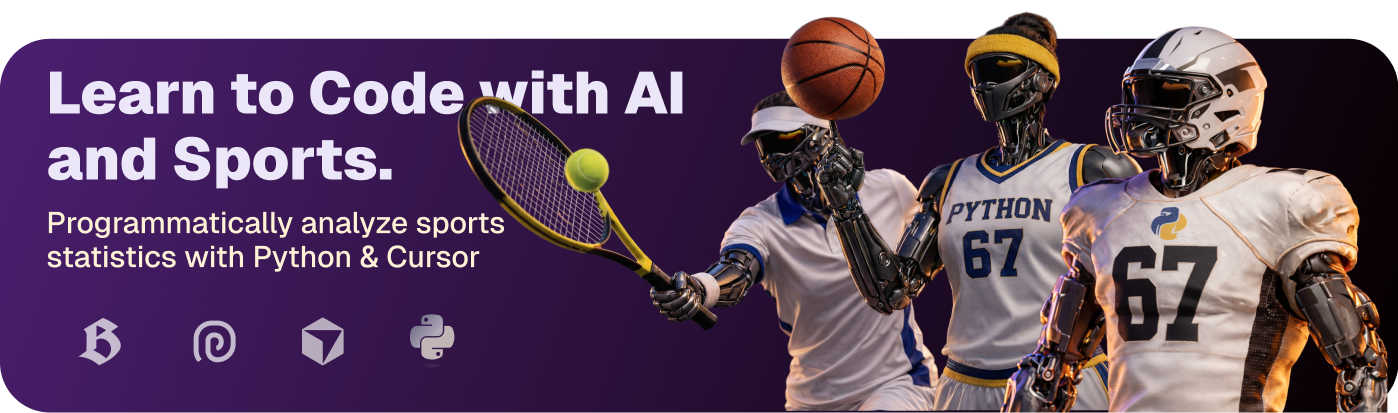
Welcome to Learn to Code with AI and Sports.
Before our first class next week, you need to set up your computer. It'll take about 15 minutes. This will help us use our class time for just coding and building projects and not troubleshooting or busywork.
After you follow the steps below, you'll have:
- Cursor (the app where you write code)
- Your first Python program, actually running on your computer!
- A few practice exercises for you to play with before class if you want to go deeper.
Let's get started!
So what are we actually building?
Over the next few weeks you'll build projects using real sports data. Stuff like player ratings, game predictions, scouting reports. Basically what professional sports analysts do, but you're going to do it with code and the help of modern AI agents (more about this later)
We're using Python as our programming language. It's what most data people use and is a great language for beginners.
We're also using Cursor which is a cutting-edge professional code editor with AI agents built in to help you when you get stuck or would like to learn more. You will be suprised how far you can go with a few codeing basics and a powerful AI at your disposal.
Step 1: Setup Cursor
Depending on your computer, you may install cursor in a different way.
Install Cursor on Mac or Windows Install Cursor on ChromebookNote: If you are unable to install Cursor on your own computer, ask your instructor for one of the loaner Macbook Pros we have available to use during class.
Pick Mac or Windows, install it like a normal app, and open it up.
You should see some kind of welcome screen. If you do, you're good to go and move on to the next step.
Step 2: Download the starter files
We've created a starter pack for you to get started with. It contains the files you need to setup and use Cursor and Python together alongside helpful agents.
Download Starter PackIt probably landed in your Downloads folder. Find the file and then double-click the zip to unzip it.
Its reccomended to move this folder to a place where you will remember it but if you want to just open from Downloads, that's fine for now.
Now you need to open it in Cursor:
- On Mac: Drag the folder onto the Cursor icon in your dock
- On Windows: Open Cursor, then File → Open Folder, and pick the folder you just unzipped
You should see files listed on the left side of the screen. Find hello-world.py in there. That's what we'll run.
Step 3: Check that Python is installed
Before we run anything, let's make sure Python is on your computer.
Open the terminal in Cursor using View > Terminal from the menu bar. You can also use a keyboard shortcut:
- Mac:
Cmd + ~(the squiggle key above Tab) - Windows/Chromebook:
Ctrl + ~
You'll see a panel pop up at the bottom. That's the terminal window.
Now type this and hit Enter:
python --version
You should see something like Python 3.12.1 (the exact number doesn't matter).
If you get an error, try python3 --version instead. Some computers use python3.
Still getting errors? Post in Discord or bring your laptop to the first class. We'll sort it out.
Step 4: Run something
Now for the fun part. Let's run some code.
Click on hello-world.py in the file list on the left to open it. Here's what you'll see:
# My first Python program

print("Hello, World!")

my_name = "Your Name"
my_sport = "Football"

print("My name is " + my_name)
print("My favorite sport is " + my_sport)
What's going on here?
- The
#line is a comment. Python ignores it. It's just a note for you. print("...")displays text on the screenmy_name = "Your Name"creates a variable that stores data- The
+glues text together
Now let's run it. In the terminal, type this and hit Enter:
python hello-world.py
(Use python3 if that's what worked in Step 3.)
The terminal should print:
Hello, World!
My name is Your Name
My favorite sport is Football
Did it work? Congrats, you just ran Python!
Try changing it
Open hello-world.py and look for these lines:
my_name = "Your Name"
my_sport = "Football"
Put in your actual name and your favorite sport. Save the file using File > Save (or Cmd + S on Mac, Ctrl + S on Windows/Chromebook) and run it again.
See how the output changed? That's what variables do. You swap out the data, the program does the rest.
What to do when things break
If you get an error when trying to run your code, don't panic, this is normal! In fact, there's a name for the skill needed to resolve the situation... it's called: debugging. We'll learn several techniques to debug our code in class and you will get plenty of practice.
We have several good options for getting help:
-
Ask the AI. Open the AI chat by clicking the chat icon in the sidebar, or use
Cmd + Lon Mac (Ctrl + Lon Windows/Chromebook). You can literally just ask it "why isn't this working?" and it will help you fix it. -
Post in Discord. Other people are probably hitting the same issues. Ask there.
-
Google it. This is what actual programmers do. Just search the error message or describe the problem. Someone on Stack Overflow has already solved it.
Bonus Practice (Optional)
There's a practice/ folder in your starter pack with a few mini-exercises:
| File | What it covers |
|---|---|
01_about_me.py | Printing and variables |
02_sports_math.py | Basic math |
03_game_result.py | If statements |
You can see these files in the left sidebar of Cursor. Click on them to open them and read the instructions. If you don't see the files, open the sidebar using View > Appearance > Toggle Primary Sidebar (or Cmd + B on Mac, Ctrl + B on Windows/Chromebook).
Common problems
| What's happening | What to try |
|---|---|
| "python: command not found" | Use python3 instead |
| Nothing happens when I run | Did you save the file first? |
| Can't find the terminal | Use View > Terminal or Cmd + ~ (Mac) / Ctrl + ~ (Windows/Chromebook) |
| Cursor won't open the folder | Use File → Open Folder manually |
| Zip file won't open | Right-click → Extract All (Windows) |
If none of that works, just bring your laptop to the first class. We'll figure it out.
You're all set
If you can open Cursor, see the files, and run hello-world.py, you're ready.
See you soon 🏆
Are you all finished? Good work! Continue to the first project: >button: Amazing Achievement.